Built for the phone in your hand
Your whole quiz studio, on your phone.
You can make a trivia video start to finish on a phone: pick a topic, let AI write the questions, edit them on a full-screen preview, and save the finished video straight to your camera roll. Add Trivia to your home screen and it opens like an app — no app store, no download.
No credit card required
Step 1 — Install
It isn’t an app store. It’s two taps.
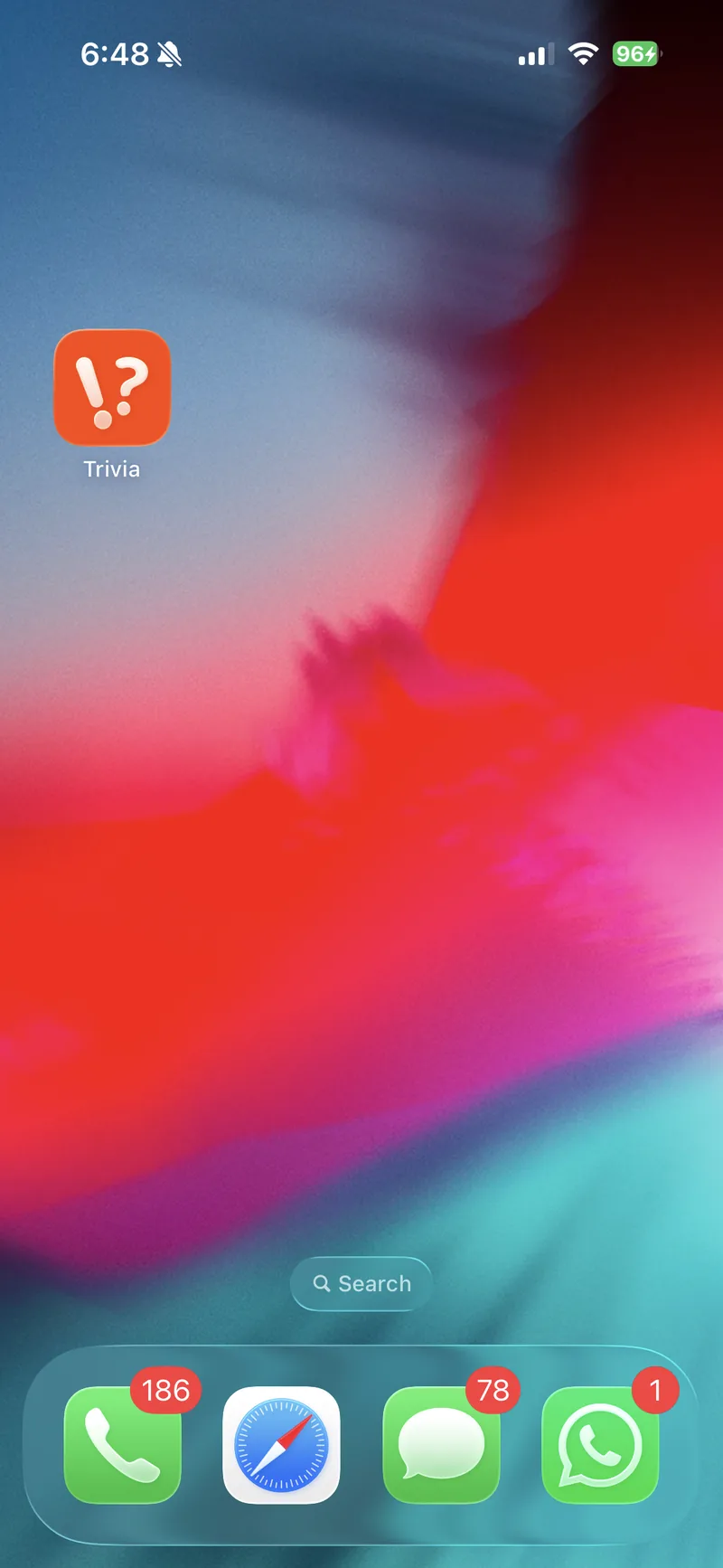
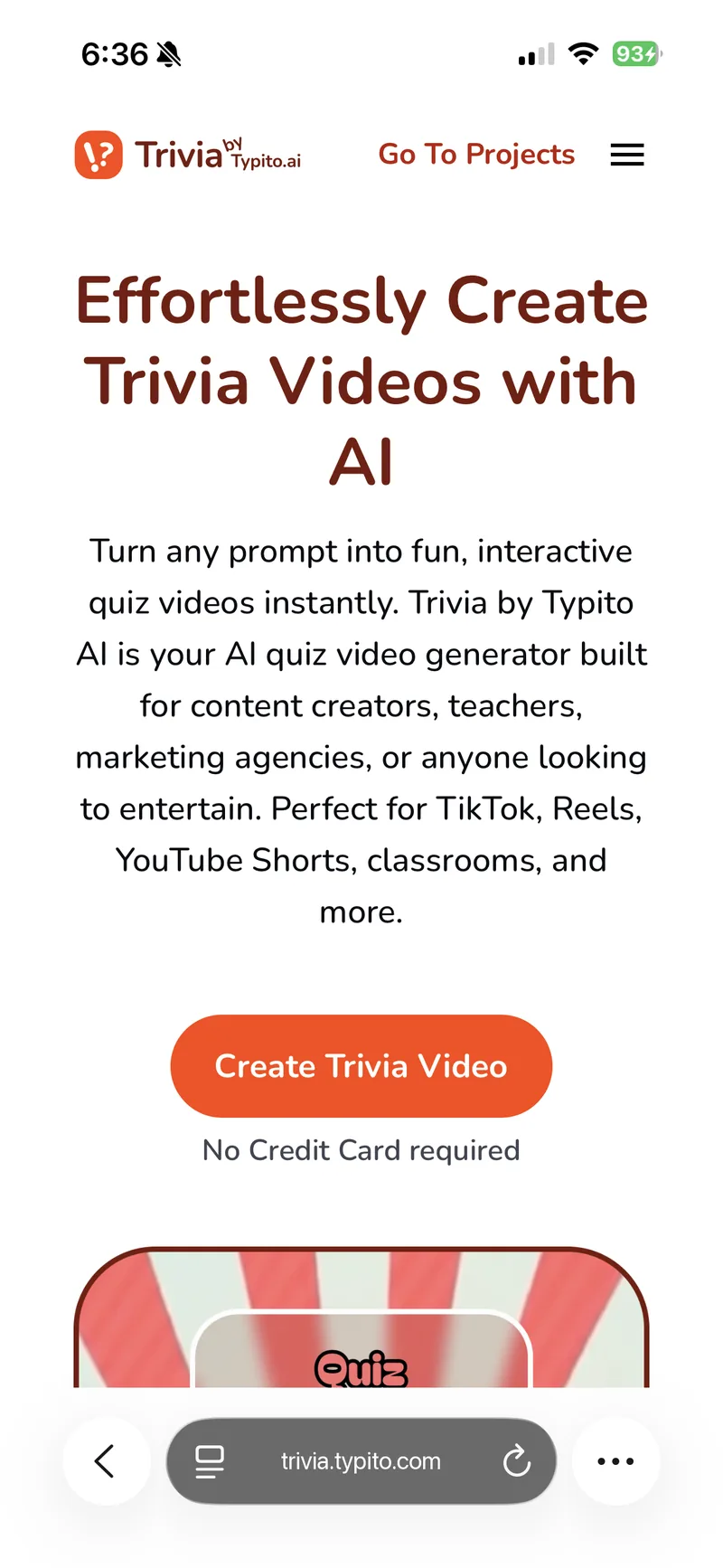
Trivia lives on the web, but it doesn’t have to feel like it. Open trivia.typito.com, tap Share, then Add to Home Screen. It lands on your home screen like any other app — always the latest version, nothing to update.
1. Open trivia.typito.com
Safari on iPhone, Chrome on Android. No sign-up needed to look around.
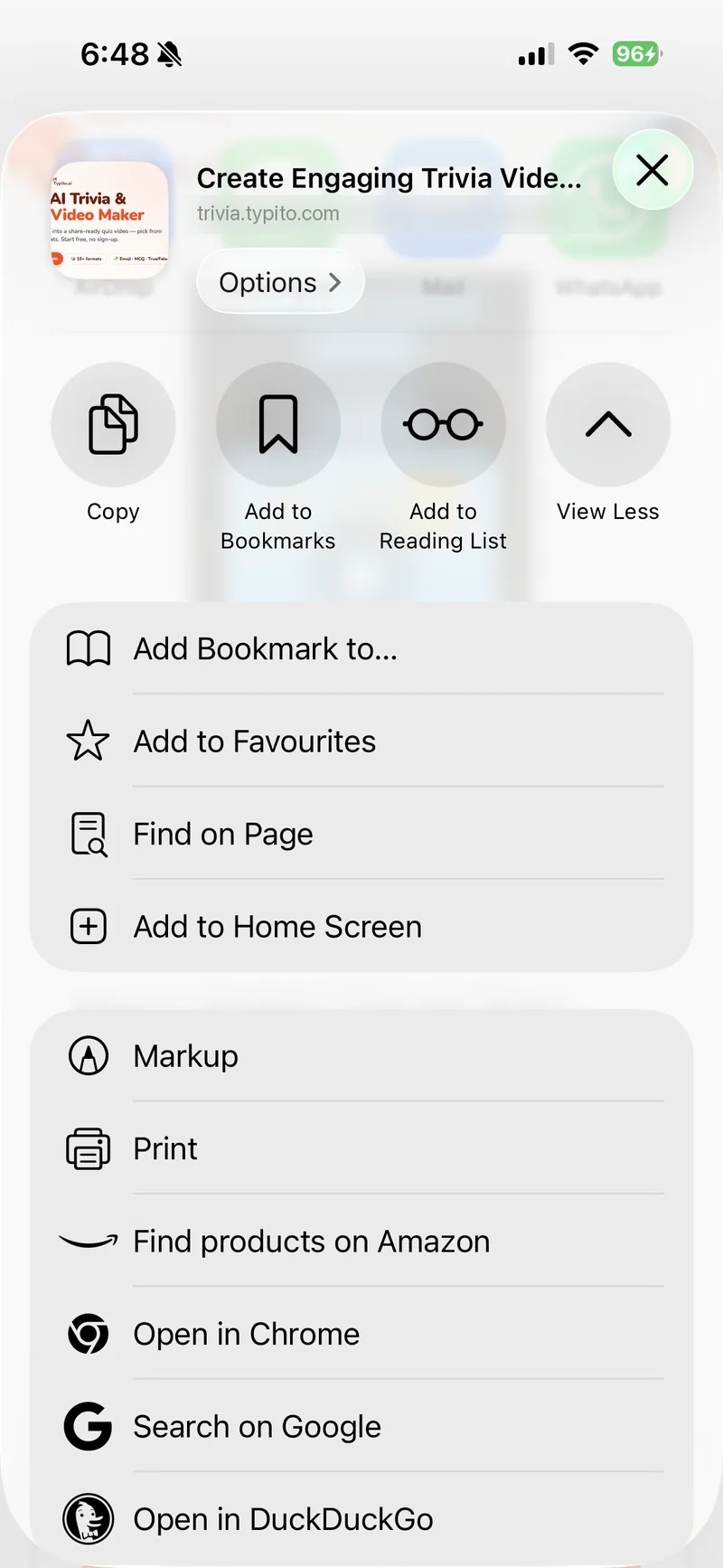
2. Share → Add to Home Screen
The same two taps on both platforms. On Android, Chrome may offer to install it for you.
3. Tap the icon like any app
It opens full screen, straight to your quizzes — no browser bar in the way.
Official guides if you’d rather follow along: iPhone (Safari) · Android (Chrome)
Step 2 — Pick your quiz
Bring a topic. Trivia brings the rest.
Start from a recipe — Decode the Emojis, Match Image to Word, True or False — or write your own prompt. Then type any topic at all. Harry Potter, 90s hip hop, the solar system, your niche.
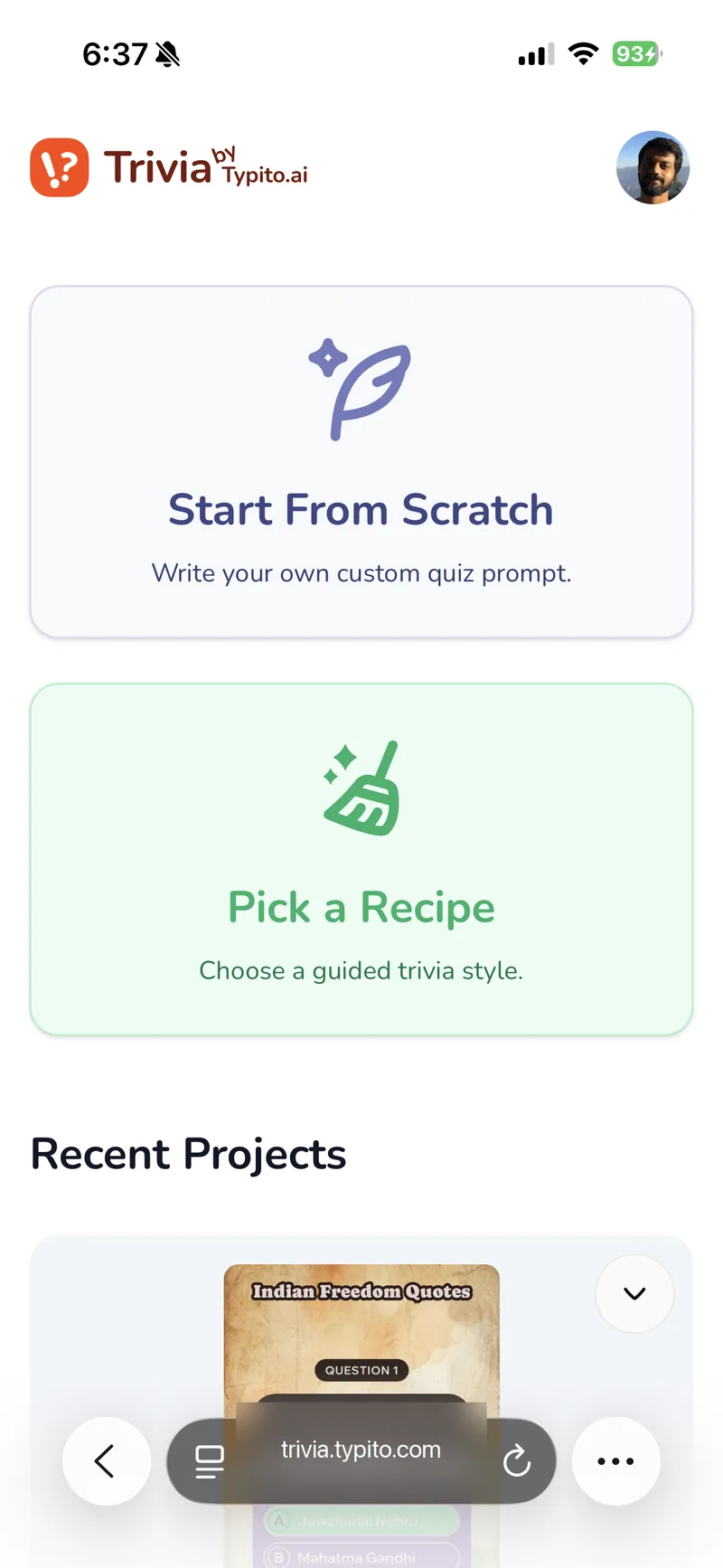
Start from scratch, or pick a recipe
Your past quizzes stay on the dashboard, ready to re-edit or re-export.
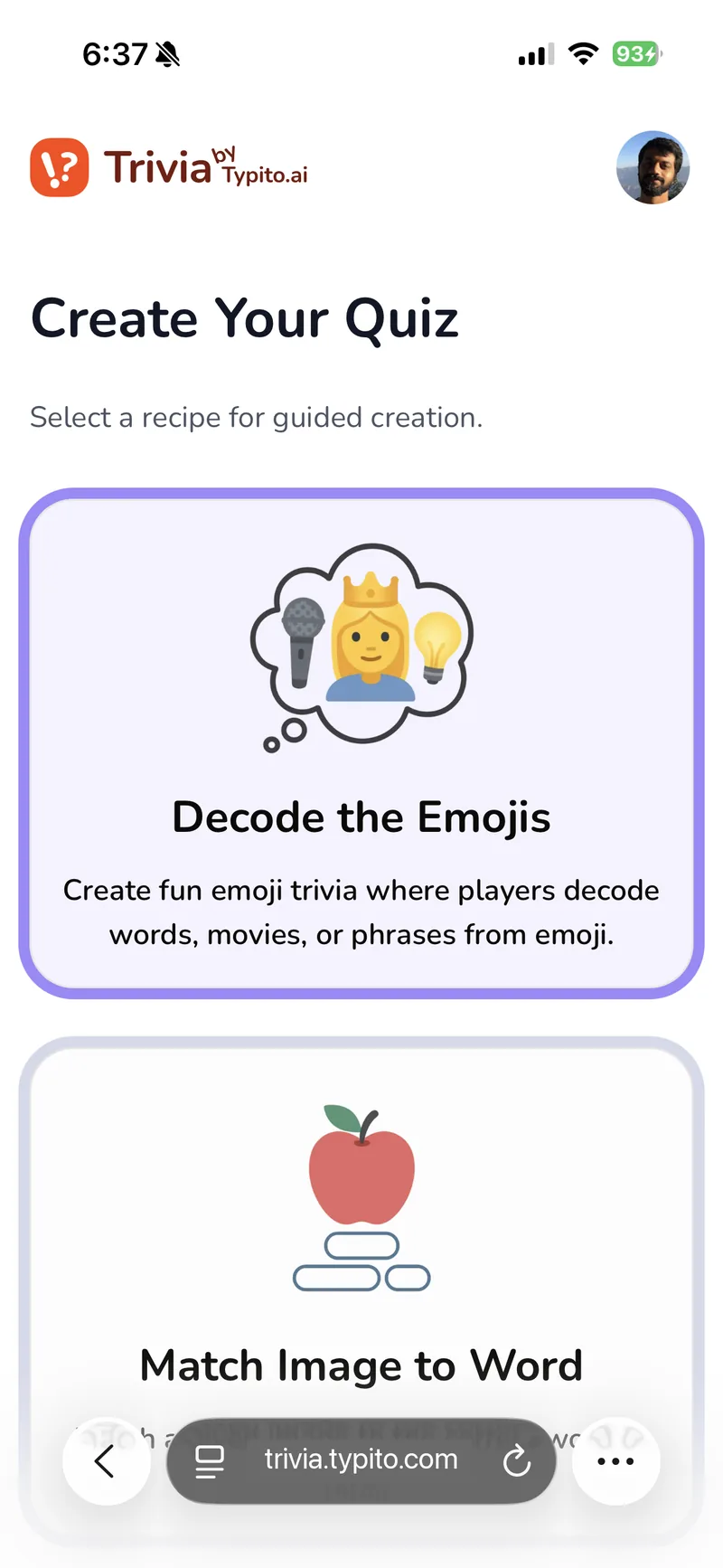
Choose a trivia style
Each recipe shapes the questions differently — emoji puzzles, image matching, true or false.
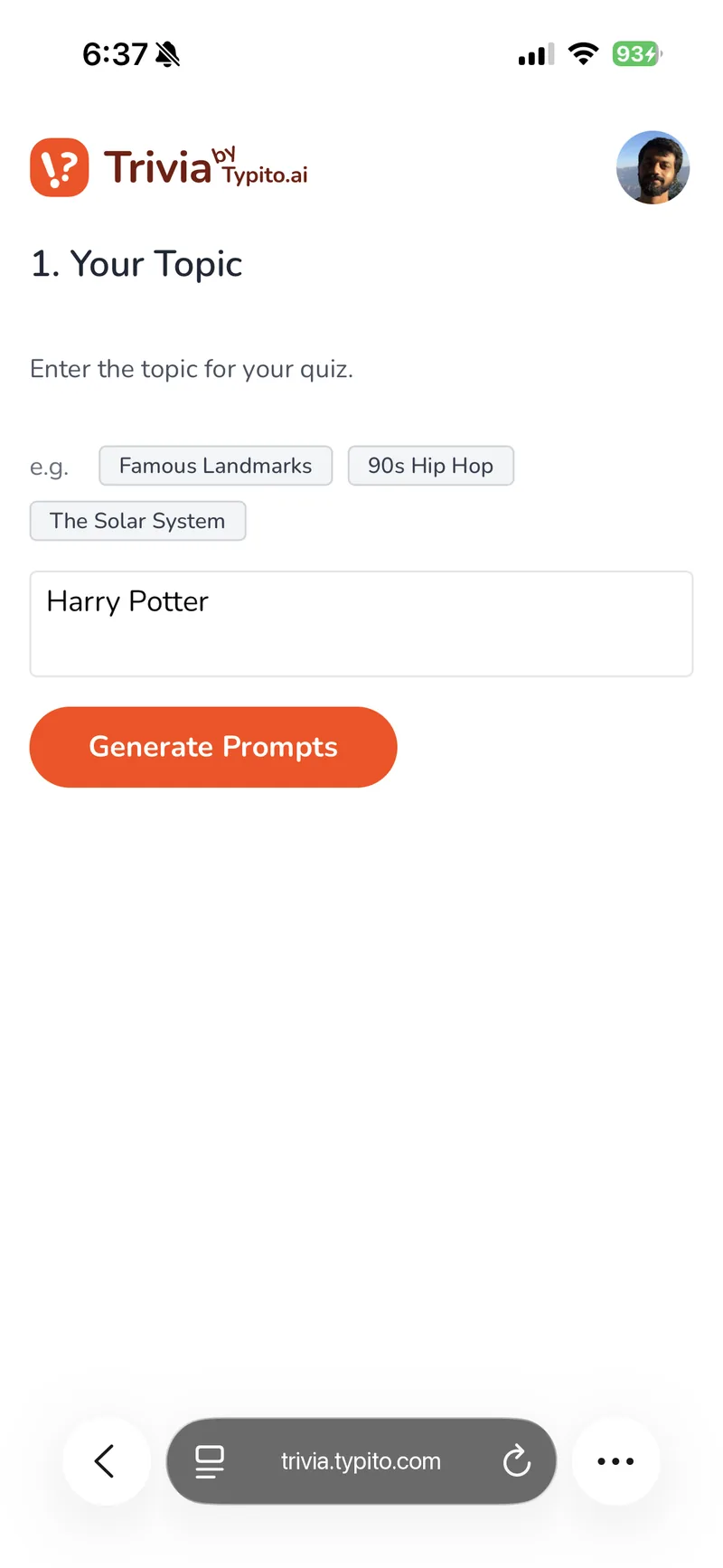
Type a topic
One line is enough. Tap a suggestion if you’d rather not think of one.
Step 3 — Let AI write it
Questions, answers and artwork — written for you.
Trivia suggests a few angles on your topic, then writes the whole quiz. Choose how many questions and how hard they should be, and switch on Smart Theme for an AI-generated background tuned to the subject.
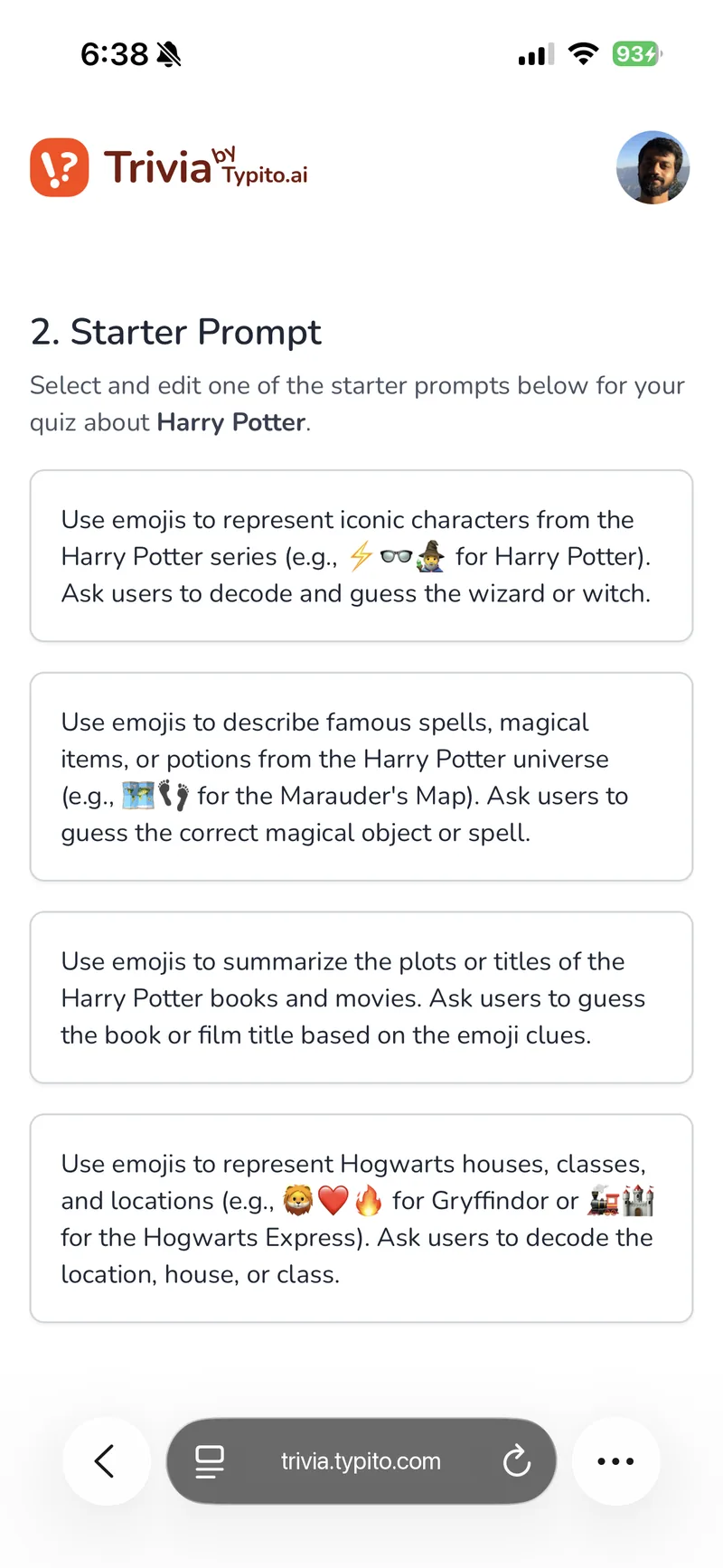
Pick an angle
Several starter prompts per topic, each a different take. Edit any of them.
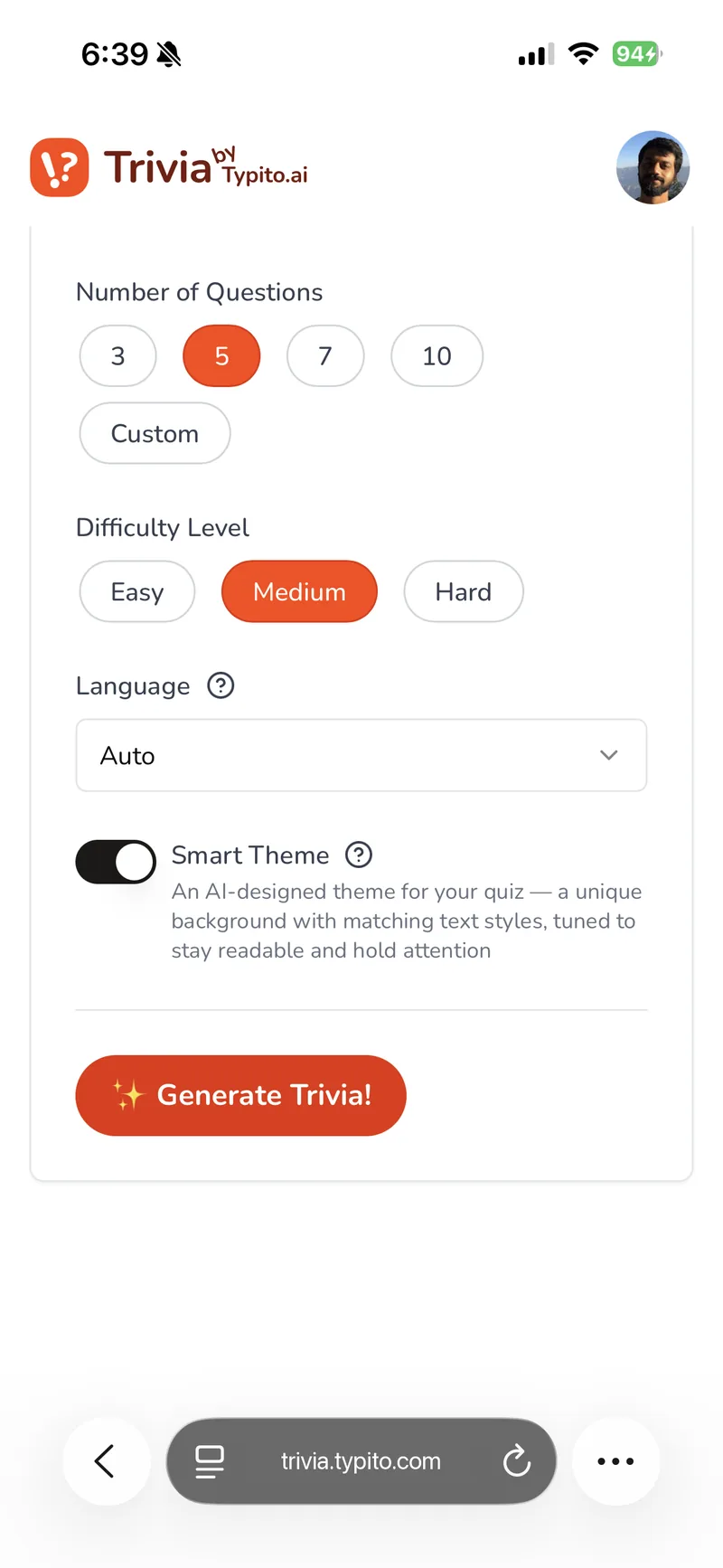
Set the shape of it
Question count, difficulty, language — and Smart Theme for a matching AI background.
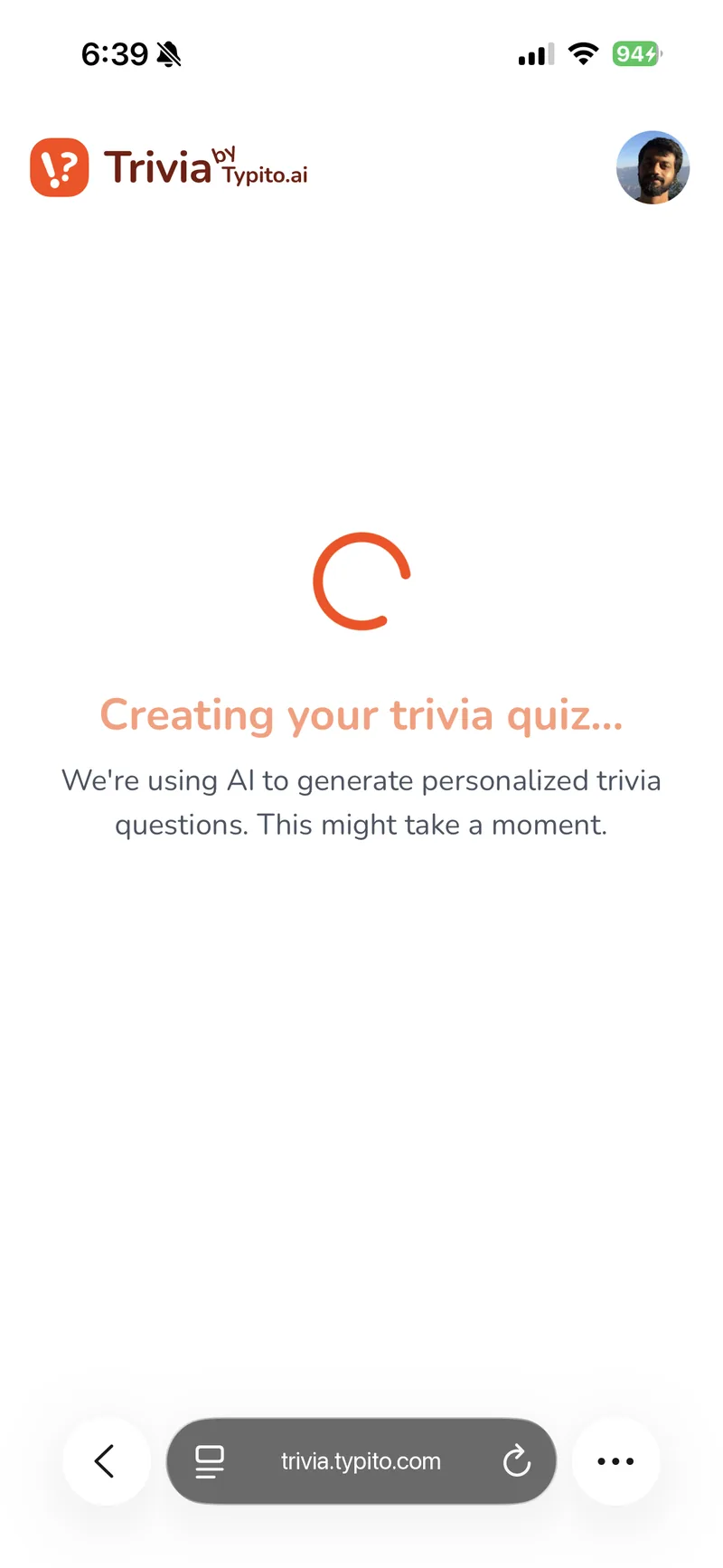
Give it a minute
Questions, answers, artwork and voiceover, generated together.
Step 4 — Make it yours
The editor opens on the video, not a form.
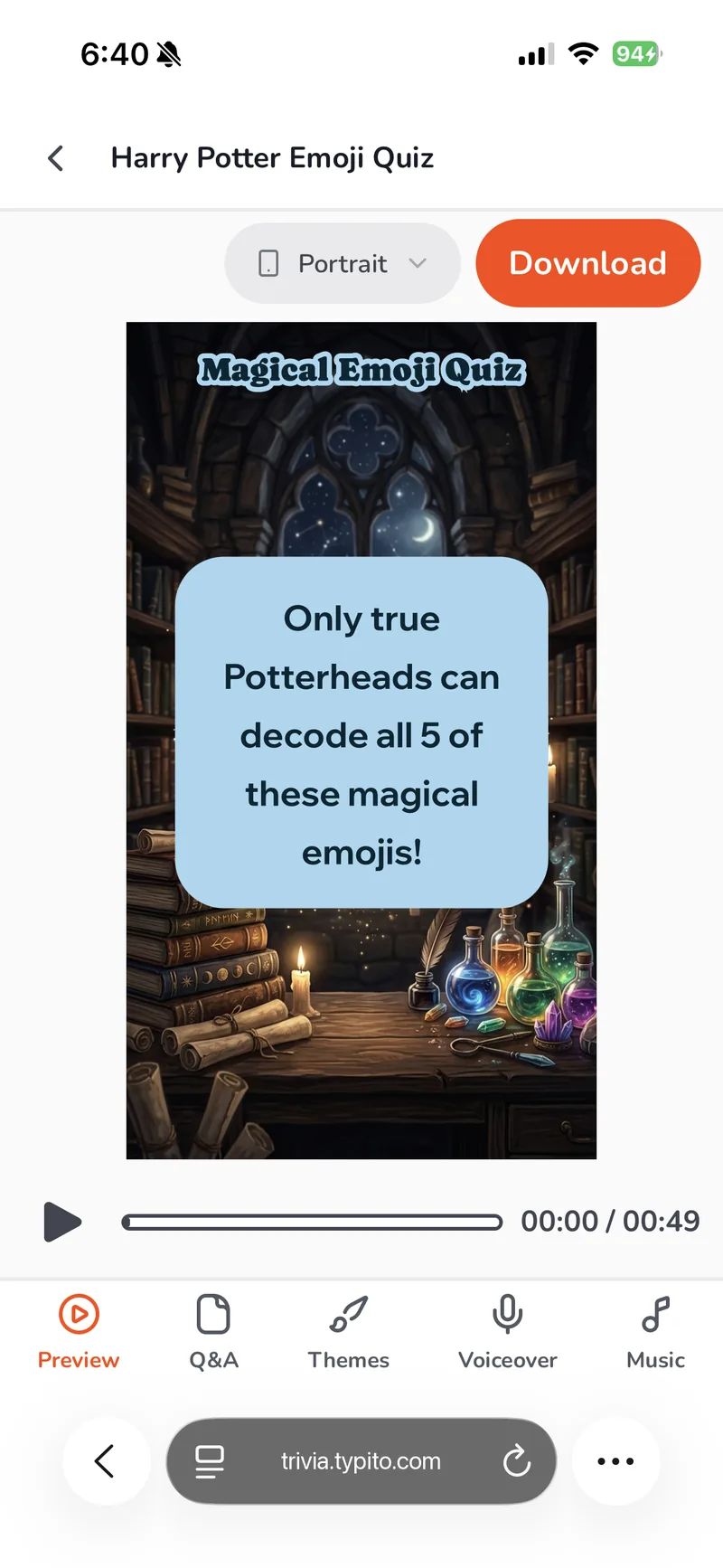
On a phone the preview gets the whole screen, because seeing the video is the point. Tabs along the bottom switch between the questions, themes, voiceover and music — and the preview follows along.
Preview first
Full-screen playback with the tab bar underneath. Portrait for Reels and Shorts, widescreen for YouTube.
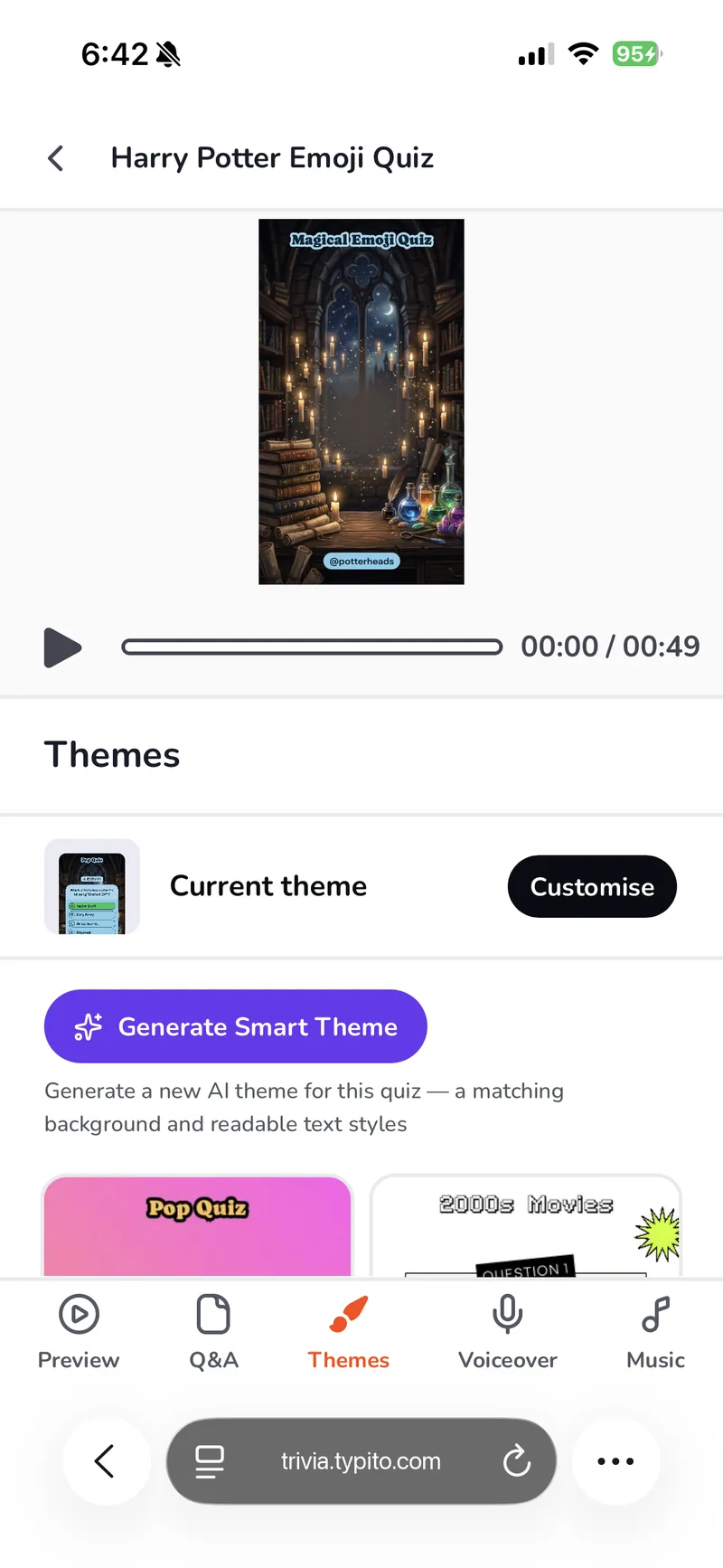
Change the look, watch it change
Themes keep a live preview on top, so a new background or palette lands in front of you.
Step 5 — Straight to your camera roll
Finished video, in your photos.
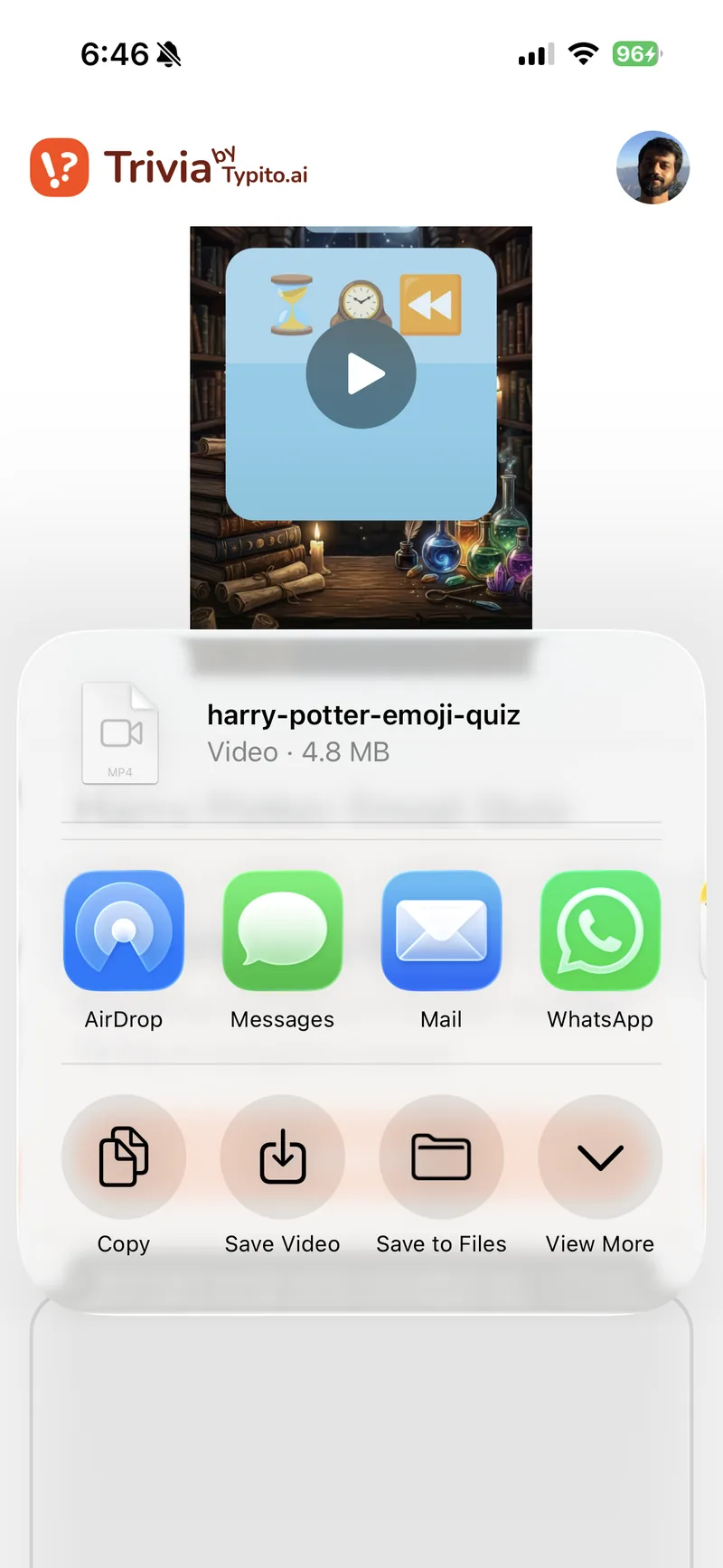
Export, then tap Save Video. It goes into your camera roll like anything else you’d shoot — ready to post to TikTok, Reels or Shorts without moving it to a laptop first.
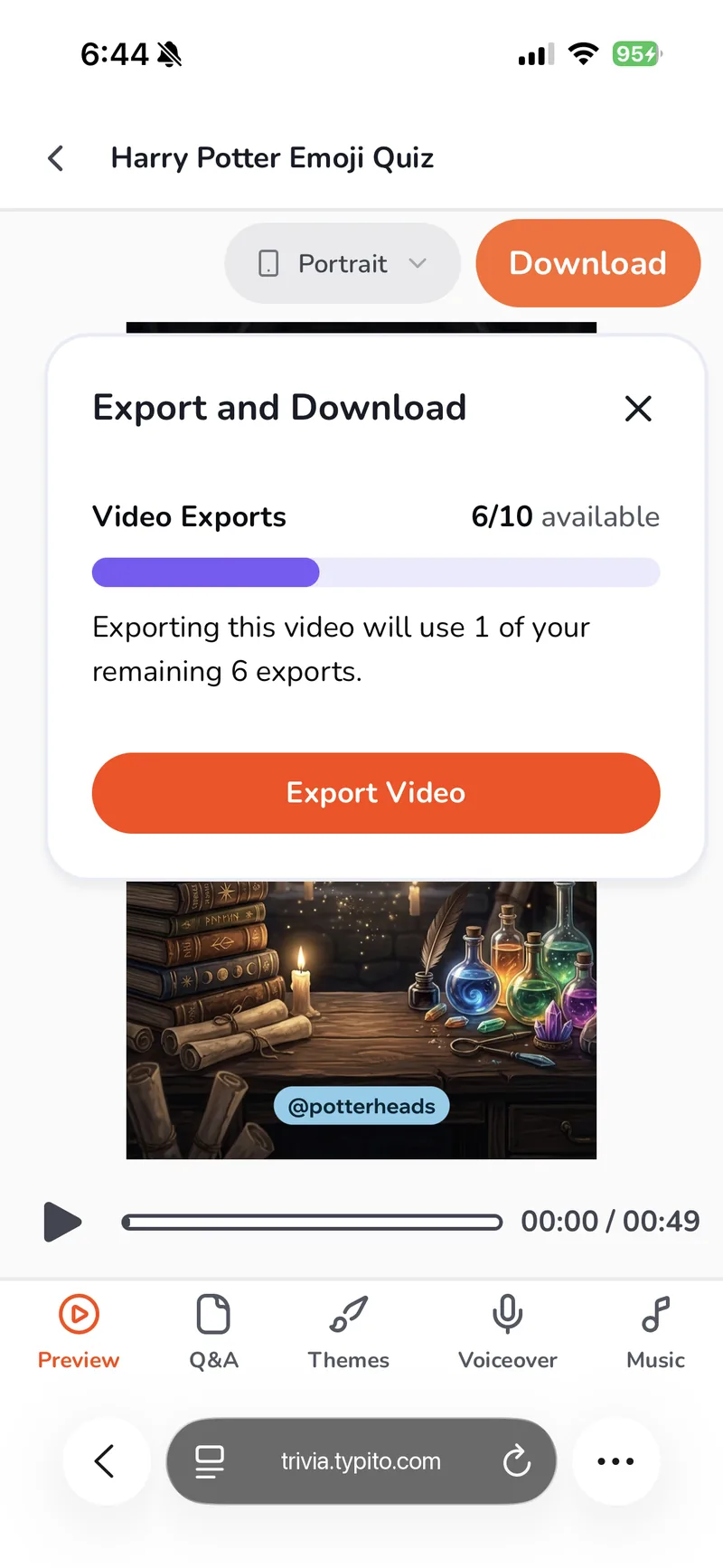
Export it
You can see how many exports your plan has left before you spend one.
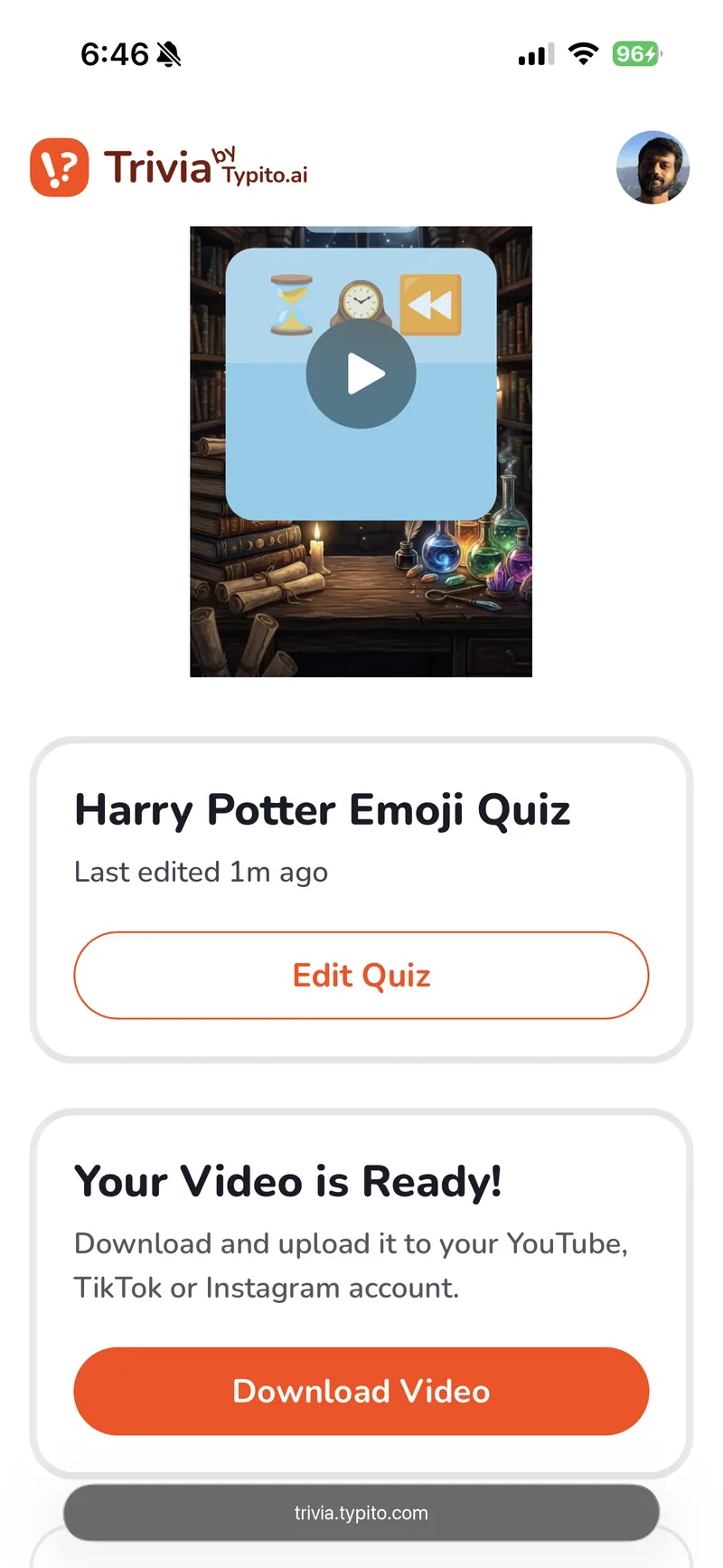
Your video is ready
Play it back before you download, so there are no surprises.
Save Video
Your phone’s own share sheet — save to photos, or send it straight to WhatsApp or Instagram.
Open it on your phone.
Free to start, no credit card. Make one quiz video and see whether it earns a spot on your home screen.

Scan to open it on your phone